
Call Transfer
Enable your Digital Worker to transfer callers to the right person on your team based on the conversation.Call Transfer requires an active phone channel. Add a phone number to your Digital Worker first.
How It Works
- Caller speaks with your Digital Worker
- Digital Worker identifies need for human support (billing, technical, etc.)
- Digital Worker announces the transfer
- Call transfers to configured destination
- Human team member continues the conversation
Setting Up Call Transfer
Add Phone Channel
Your Digital Worker needs an active phone number before you can enable call transfer.
Go to Channels tab → Add Phone Channel.
Add Routing Rules
Configure where calls should transfer:
| Field | Description | Example |
|---|---|---|
| Destination Name | Team member or department | ”Billing Team” |
| Phone Number | Transfer destination (E.164) | +61396604237 |
| Condition | When to transfer | ”Caller asks about invoices or payment issues” |
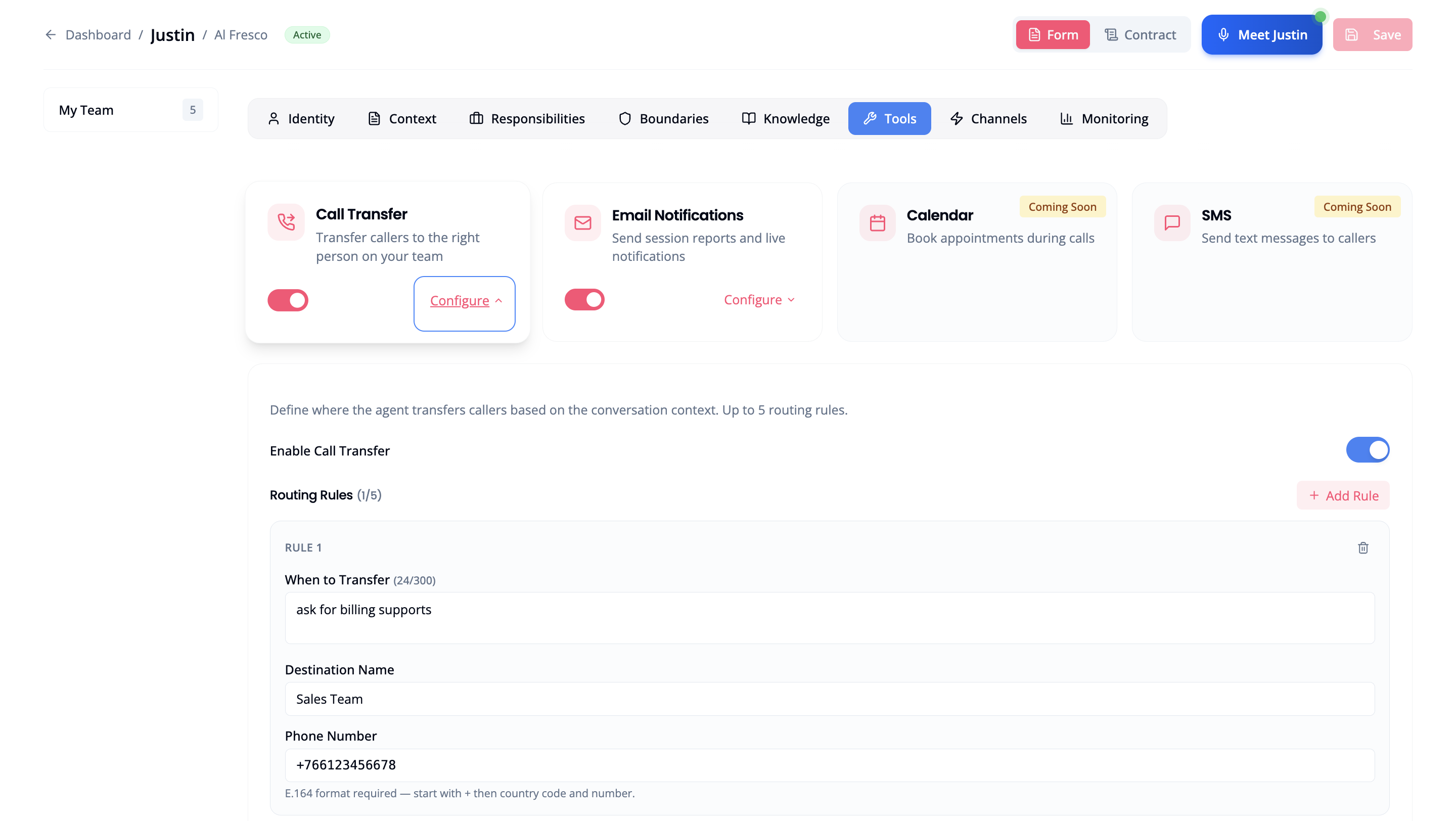
Routing Rules
Each routing rule defines when and where to transfer:Example Conditions
| Department | Condition Example |
|---|---|
| Sales | ”Caller interested in new services or pricing” |
| Support | ”Technical issue the AI cannot resolve” |
| Billing | ”Questions about invoices, payments, or refunds” |
| Escalation | ”Caller frustrated or requests human agent” |
Phone Number Format
Transfer destinations must be Australian phone numbers in E.164 format:| Type | Format | Example |
|---|---|---|
| Mobile | +614XXXXXXXX | +61412345678 |
| Landline | +61 + area code + number | +61396604237 |
- Start with
+61(Australia country code) - No spaces, dashes, or brackets
- Mobile numbers: 10 digits after +61 (e.g., +61412345678)
- Landline: area code + 8-digit number (e.g., +61396604237)
Call Transfer currently supports Australian phone numbers only. International number support is on the roadmap.
What Happens When Phone is Removed
If you remove your Digital Worker’s phone channel while call transfer is enabled:- Call transfer is automatically disabled
- Your routing rules are preserved (not deleted)
- Re-enable call transfer after adding a new phone number
You’ll see a warning when removing a phone number if call transfer is active.
Limits
- Maximum 10 routing rules per Digital Worker
- At least 1 rule required to enable call transfer
- Phone number must be valid E.164 format
Related
- Phone Channels: Add phone numbers to your Digital Worker
- Editing Your Digital Worker: Modify worker settings