
Phone Channels
Give your Digital Worker a phone number so customers can call and speak with them directly.Agntic currently provides Australian local numbers only. International numbers are on the roadmap.
Adding a Phone Number
Switch to Form Mode
Open your Digital Worker’s profile. In the top-right corner, click the Form button to enter configuration mode.
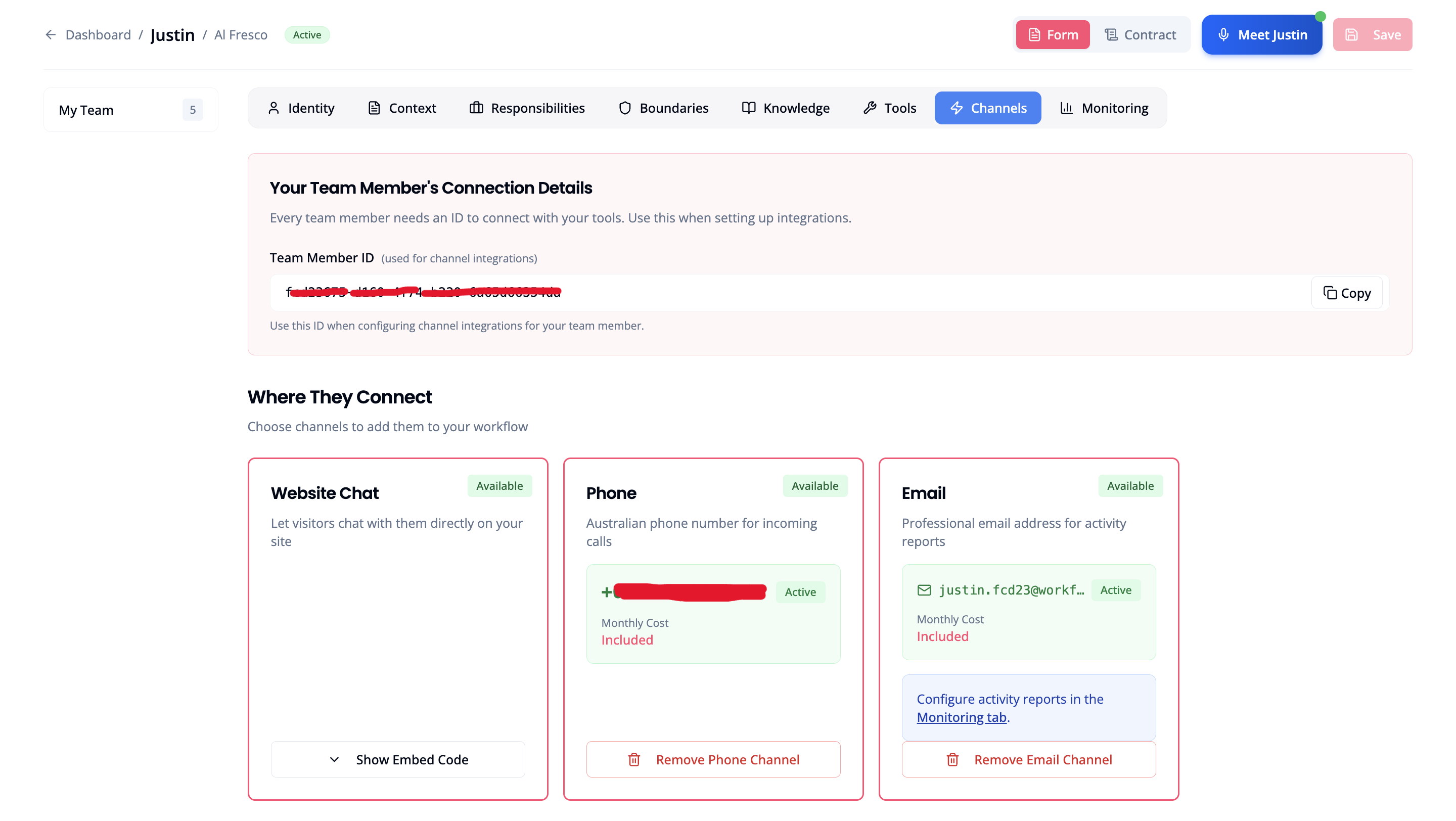
How Phone Numbers Work
When you enable a phone channel, Agntic automatically provisions an Australian local number for your Digital Worker. What this means:- You cannot select a specific number or area code
- You cannot port an existing number to Agntic
- The assigned number is randomly allocated from available Australian local numbers
Connecting Your Business Line
Your customers likely call your existing business number, not the new Agntic number. To route those calls to your Digital Worker, set up call forwarding with your phone carrier. How it works:- Contact your phone carrier or log into their portal
- Set up call forwarding to your Digital Worker’s Agntic number
- Test by calling your business number and confirming your Digital Worker answers
Call forwarding is configured with your existing phone provider, not within Agntic. Each carrier has different steps. Search “[your carrier] call forwarding setup” or contact their support.
Call Handling
When a call comes in:- Phone rings → Digital Worker answers immediately
- Worker speaks greeting
- Conversation proceeds naturally
- Worker handles request or takes message
- Call ends
Managing Your Phone Number
From the Channels tab you can:- Remove number: Disconnects the number from this Digital Worker. The number is released immediately.
Call logs and number transfer between workers are on the roadmap. For now, if you need to move a number to a different worker, remove it here and add a new number to the destination worker.
Keeping Your Number
For Individual accounts (DIRECT):- Keep your minute balance above zero
- If your balance runs out and you don’t top up during the grace period, your phone channel is released
- When you re-enable, you will receive a different number
- Ensure your account remains active with your agency
- If your agency suspends or removes your account, your channels are released
- Re-activation may assign a different number
- If you’ve shared your Agntic number with customers or set up call forwarding, a number change means updating everything
- Agntic cannot guarantee you’ll receive the same number after release
Call Transfer
With a phone channel, you can enable Call Transfer to let your Digital Worker transfer callers to human team members based on the conversation. Learn more about Call Transfer →Related
- Call Transfer: Transfer callers to your team
- Billing & Usage: Monitor your minute balance