Email Channel
Your Digital Worker can send automated emails during calls and after conversations end. The Email Channel gives it a dedicated sending address, a professional identity for every email it sends on your behalf.Email channels are outbound only. Your Digital Worker sends emails; it does not receive or read incoming messages. To configure what emails are sent and when, see Smart Email and Activity Reports.
What the Email Channel Does
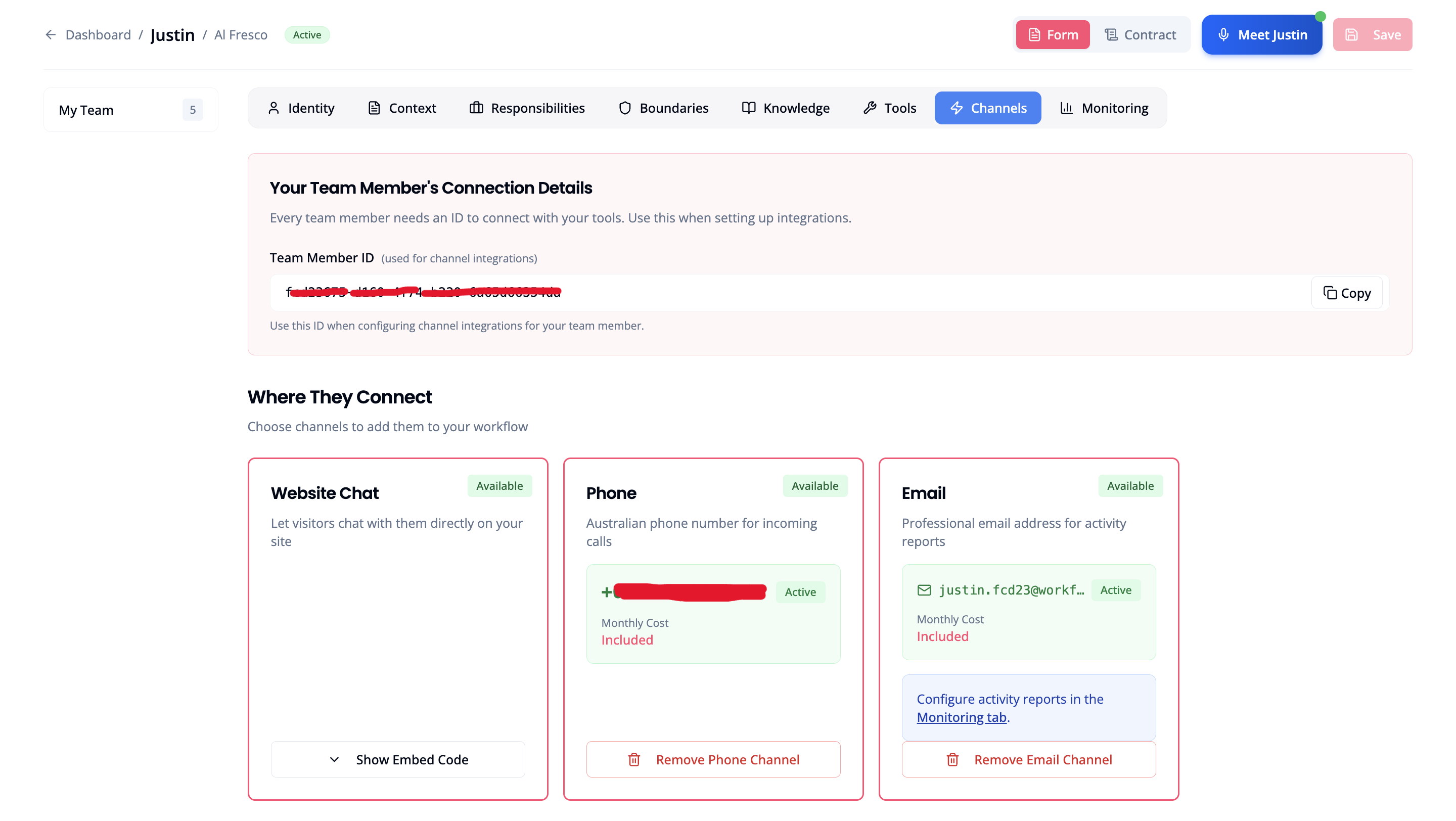
When you add an Email Channel, your Digital Worker gets a unique address (e.g.,kristian.a2f9d@workforce.agntic.ai). This address appears as the sender on:
- Smart Email notifications sent during a call when a trigger is met
- Activity Reports sent automatically after each call ends
Email Tools: At a Glance
| Smart Email | Activity Reports | |
|---|---|---|
| When | During call | After call |
| Trigger | Condition you define | Every call |
| Best for | Real-time alerts | Call records |
Adding an Email Channel
Switch to Form Mode
Open your Digital Worker’s profile. In the top-right corner, click the Form button to enter configuration mode.
Email Address Format
Each Digital Worker receives a unique email address:- Worker “Kristian” →
kristian.a2f9d@workforce.agntic.ai - Worker “Sales Assistant” →
sales-assistant.abc12@workforce.agntic.ai
Channel Status
| Status | Meaning |
|---|---|
| Active | Sending enabled |
| Grace Period | Payment pending (7 days to restore) |
| Released | Email deactivated |
Managing Email Channels
- Copy address: Share with your team so they recognise emails from this worker
- Remove channel: Disconnects the sending address
Billing
Email channels have a monthly cost deducted from your minute balance:| Plan | Monthly Cost |
|---|---|
| Trial | 10 minutes |
| Premium | 5 minutes |
- Billing occurs monthly from activation date
- If balance is insufficient, channel enters Grace Period
- Restore within 7 days to keep your email address
Next Steps
With your email channel active, configure your sending tools:Smart Email
Send alerts during a call when a trigger is met
Activity Reports
Receive a summary after every call ends
Related
- Smart Email: Real-time email alerts during calls
- Activity Reports: Post-call summaries
- Phone Channel: Add a phone number to your Digital Worker