
Activity Reports
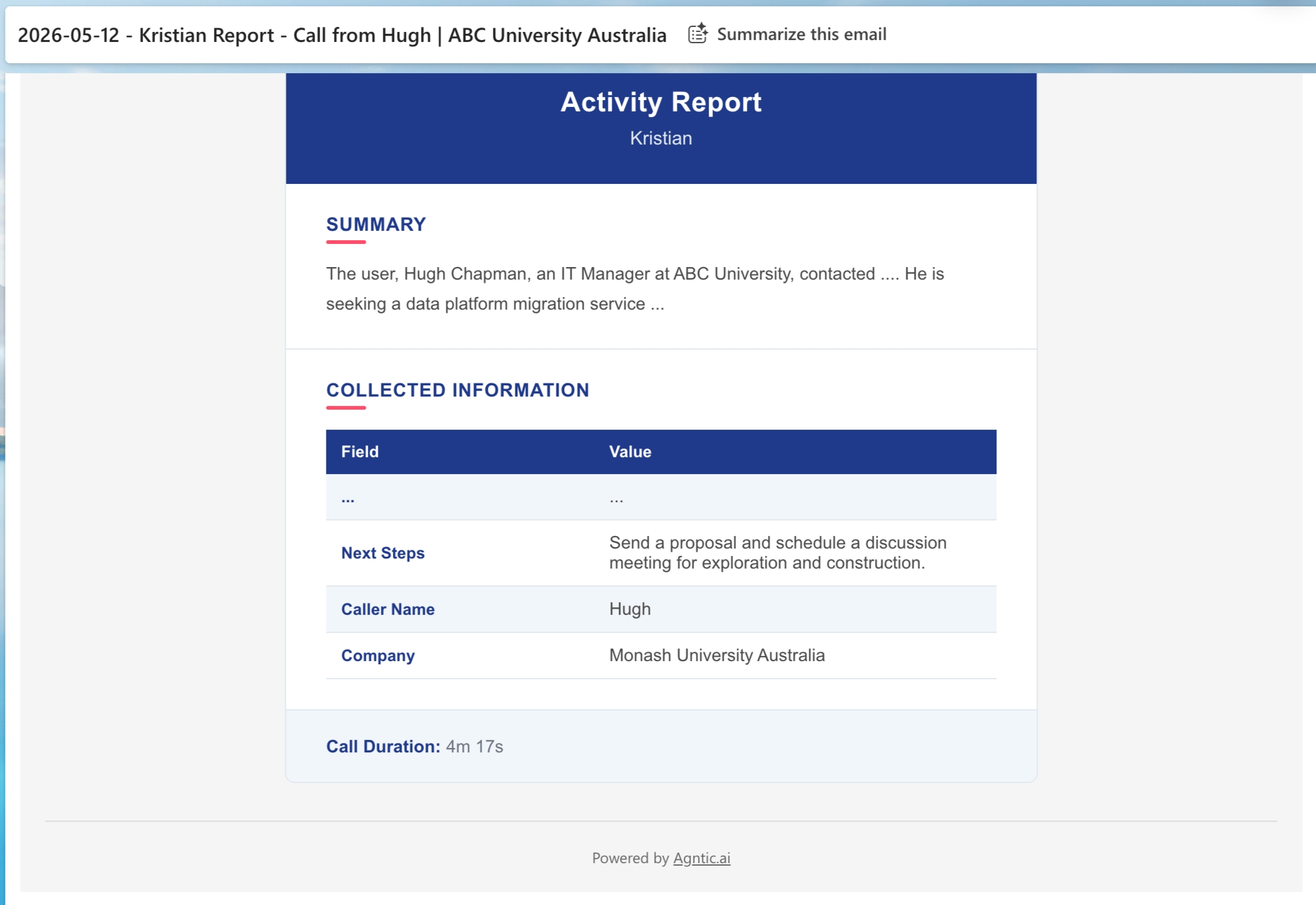
After every call your Digital Worker completes, the system automatically sends a summary email to your team: what was discussed, what information was collected, how long the call lasted.After vs during: Activity Reports send after every call automatically. Smart Email sends during a call when your Digital Worker detects a specific trigger. Most teams use both.
What You Receive
Each Activity Report includes:- Summary: Key points from the conversation
- Collected data: Information captured during the call (name, company, next steps, etc.)
- Call duration: How long the conversation lasted
Setting Up Activity Reports
Prerequisites
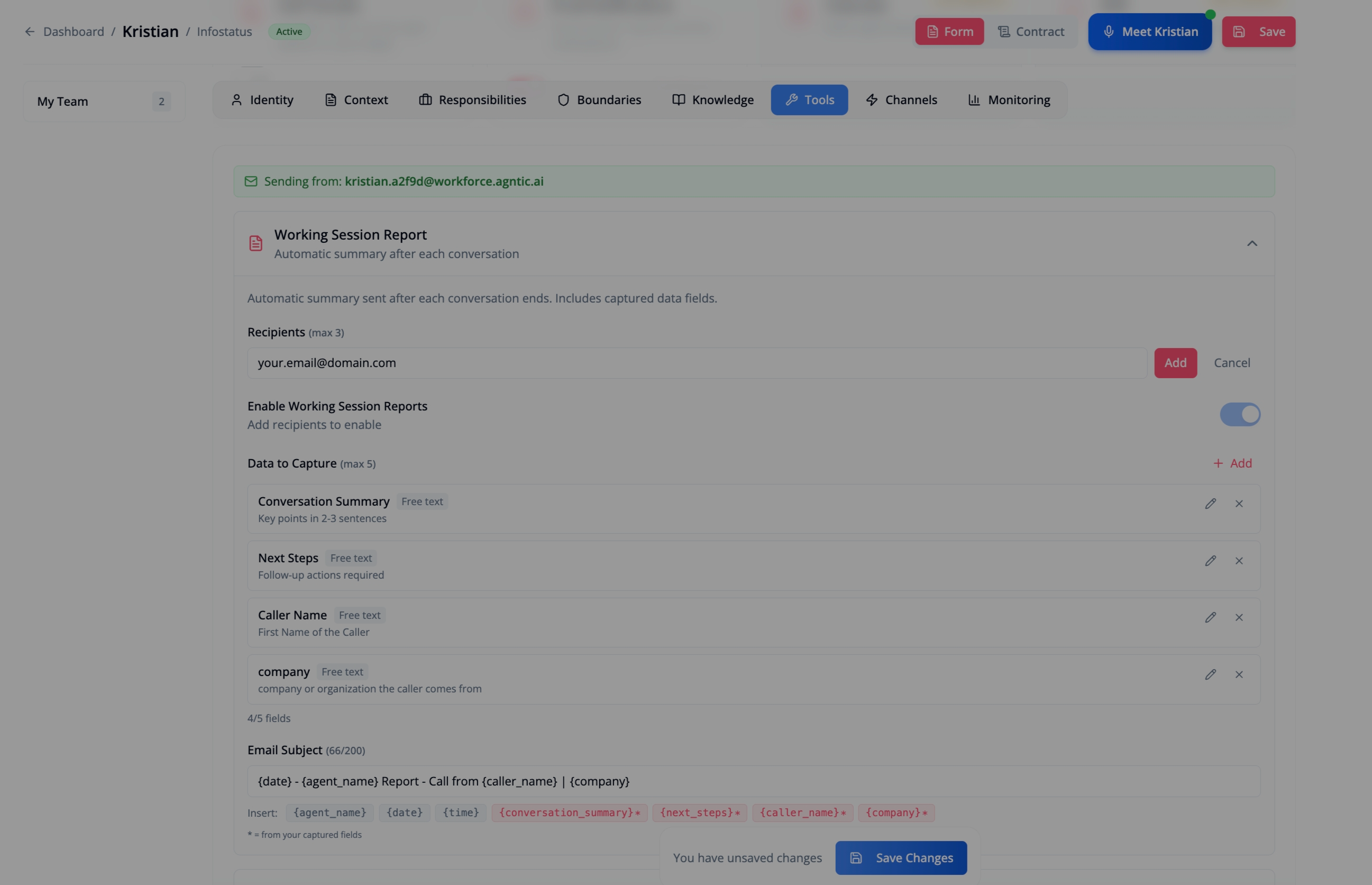
- Digital Worker must be ACTIVE
- Email channel must be ACTIVE
- At least one recipient configured
Data Fields
Define what information your Digital Worker should collect during calls:| Field Type | Use For | Example |
|---|---|---|
| Free text | Open responses | ”Caller Name”, “Next Steps” |
| Fixed options | Predefined choices | ”Call Purpose: Sales / Support / Billing” |
- Name: What appears in the report (e.g., “Caller Name”)
- Description: Instructions for what to collect (e.g., “First name of the caller”)
Email Subject Template
Customise the subject line using variables:| Variable | Replaced With |
|---|---|
{agent_name} | Your Digital Worker’s name |
{date} | Date of the call |
{time} | Time of the call |
{field_name} | Any captured field value |
Troubleshooting
Not receiving reports
Not receiving reports
- Verify email channel is ACTIVE (not in grace period)
- Check recipient email addresses are correct
- Check spam/junk folders
- Ensure the toggle is enabled
Missing data fields
Missing data fields
- Verify fields are configured in Data to Capture
- Check field descriptions are clear
- Some fields may be empty if not mentioned during the call
Wrong sender address
Wrong sender address
Reports are sent from your Digital Worker’s email channel address. Ensure the email channel is active.
Related
- Email Channel: Set up your Digital Worker’s email address
- Smart Email: Send triggered emails during calls