Editing Your Digital Worker
After hiring, you can update any part of your Digital Worker’s Employment Contract at any time: their identity, responsibilities, knowledge, boundaries, and more.
Two Ways to View the Contract
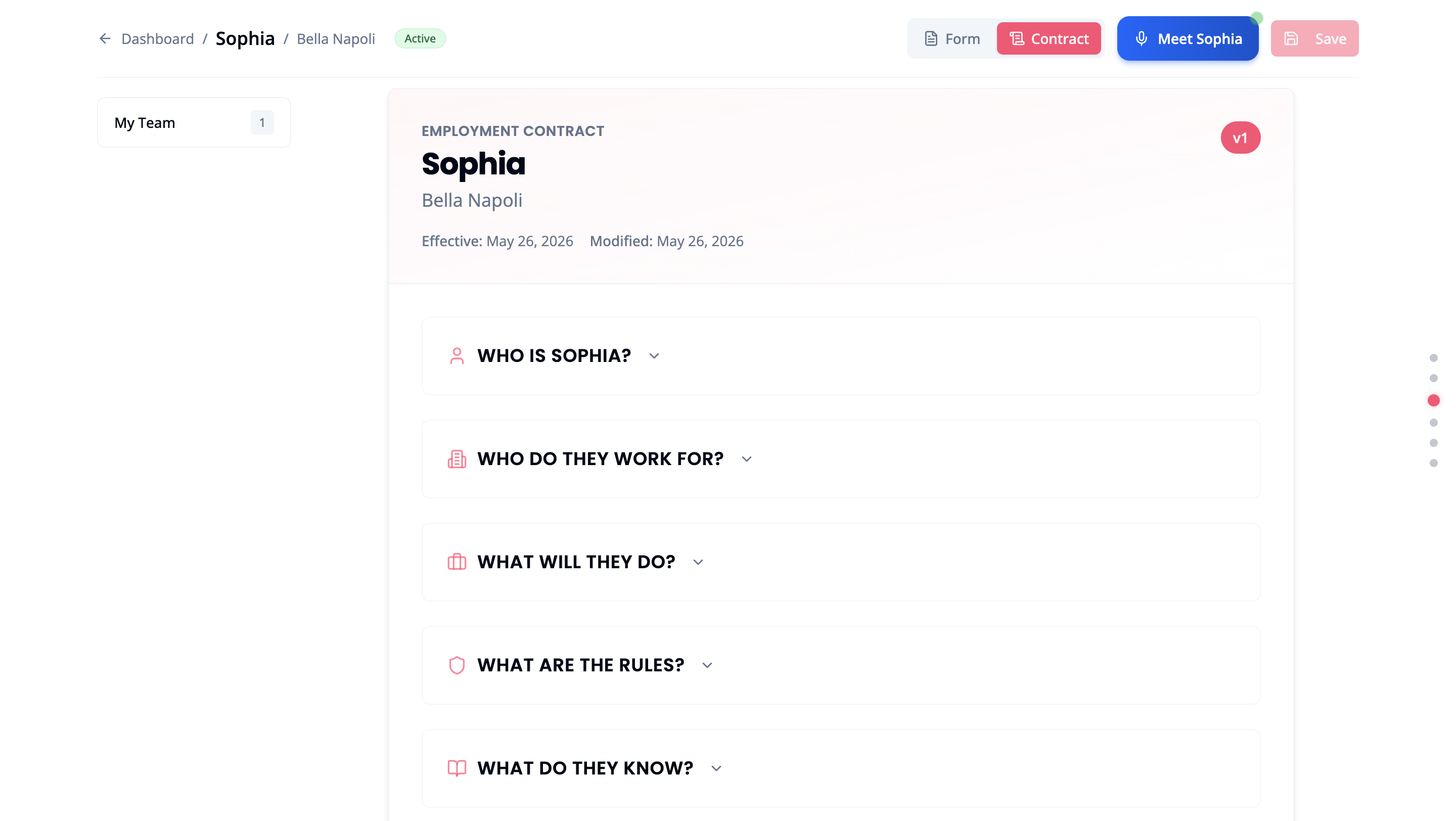
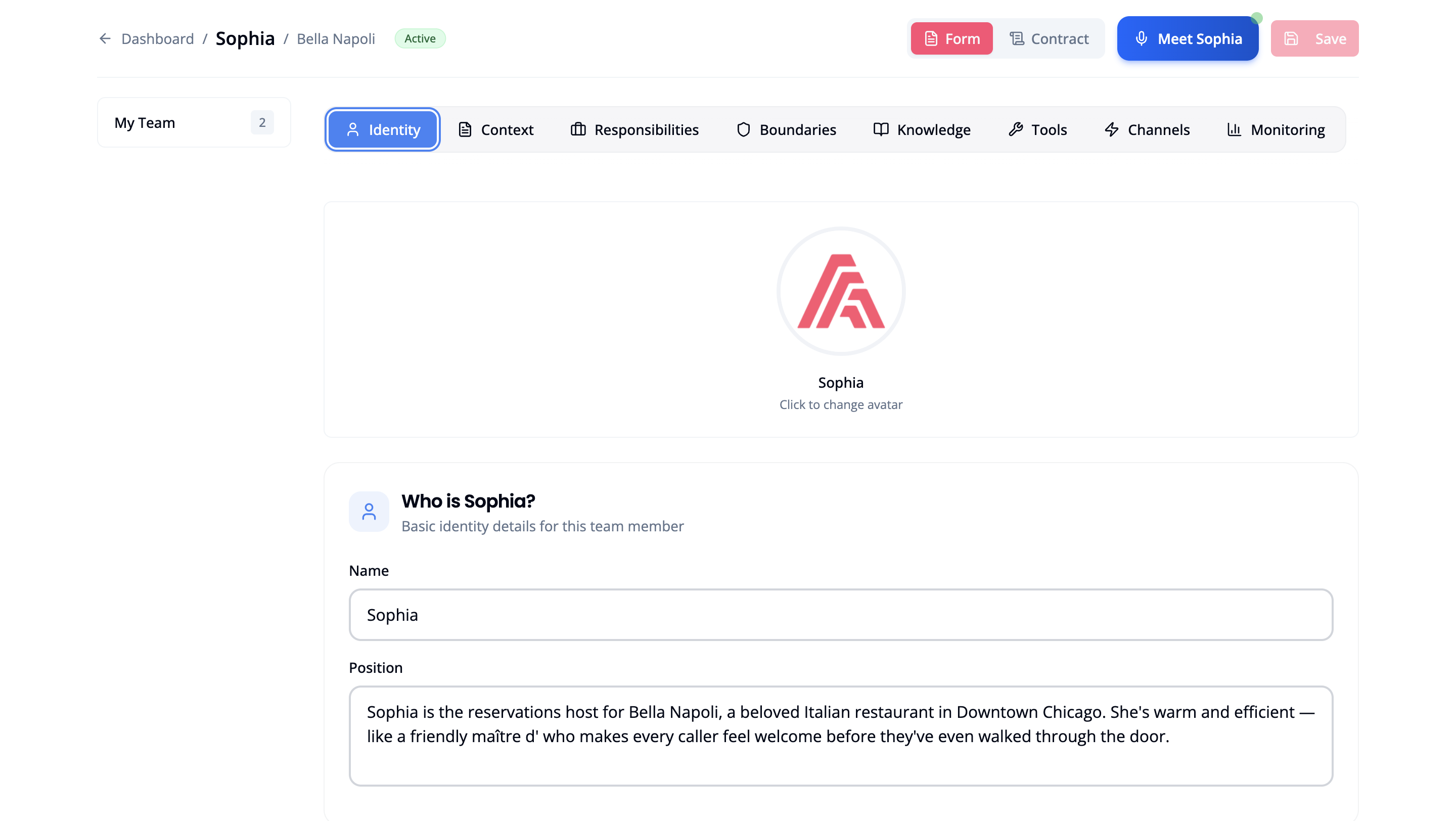
Every worker profile has two views, toggled from the top-right buttons:
| View | Purpose |
|---|
| Contract | A formatted read of the full Employment Contract. Expand any section, then click Edit to open that field in Form view. |
| Form | The full editing interface, organised into tabs. Make changes directly and click Save. |
| Tab | What You Can Edit |
|---|
| Identity | Name, position description, voice, and avatar |
| Context | Business background and industry details |
| Responsibilities | What the worker handles: tasks and scope |
| Boundaries | What the worker will never do or discuss |
| Knowledge | FAQs, policies, pricing, and business information |
| Tools | Call Transfer, Email Notifications, and other integrations |
| Channels | Phone, email, and website chat connections |
| Monitoring | Performance tracking settings |
After saving changes, your worker briefly reprocesses and comes back with the updated details. This typically takes under a minute.
Updating the Knowledge Base
The Knowledge tab is the fastest way to keep your worker up to date without touching anything else:
- Open the worker’s profile → Form → Knowledge tab
- Add text, paste FAQs, or enter updated policies
- Click Save
Use this whenever business hours change, new products launch, or your FAQs need refreshing.